
Выделенный виртуальный сервер Mirohost Cloud
Облачная инфраструктура Mirohost позволяет разворачивать сервера под любые задачи за считанные секунды. На выбор доступны четыре класса решений, оптимизированных под конкретные потребности бизнеса или разработки.
Какие линейки облачных серверов доступны и для чего они подходят?
GO — Легкие решения для мгновенного старта. Идеально подходят для тестирования, обучения, песочниц или запуска небольших pet-проектов.
FLEX — Облако для растущего бизнеса. Сбалансированные по мощности и стоимости серверы для корпоративных сайтов, CRM-систем и приложений на этапе активного развития.
PLUS — Для DevOps и командной разработки. Мощные конфигурации для тестирования, staging или production сред, где требуются высокие ресурсы памяти и диска.
POWER — Производительность без компромиссов. Бескомпромиссные решения для бизнеса, работающего под высокой нагрузкой. Гарантируют стабильную работу инфраструктуры, крупных баз данных и высоконагруженных систем даже в пиковые часы.
Мы предлагаем две системы виртуализации:
Shared vCPU (Intel и AMD): Виртуальные процессоры делятся с другими машинами на сервере. Вариант на AMD предлагает больший объем быстрого SSD при том же количестве ядер и оперативной памяти.
Dedicated vCPU (Intel и AMD): Полностью зарезервированные и выделенные под ваш сервер ресурсы (процессор и RAM) для максимальной стабильности. Здесь решение на AMD также предлагает более емкий накопитель.
Мы используем официальные сборки операционных систем для облачных платформ (general purpose образы), содержащие систему cloud-init. Обновление образов происходит еженедельно.
Во время инсталляции вы можете указать собственный SSH-ключ или использовать автоматически сгенерированный.
Пароль root отправляется в момент запуска виртуальной машины на контактную электронную почту, указанную при регистрации хостинг-пакета.
Обратите внимание: для серверов линейки Cloud автоматическое резервное копирование (backup) по умолчанию не выполняется.
Создание снимков системы (snapshots) и настройка расписания копирования осуществляется пользователем
вручную через панель управления.
Как выглядит панель управления услугой
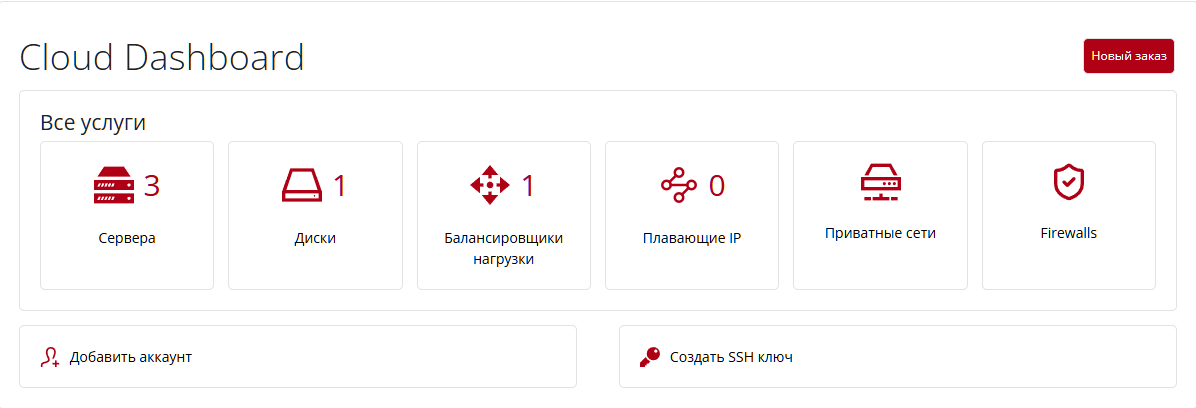
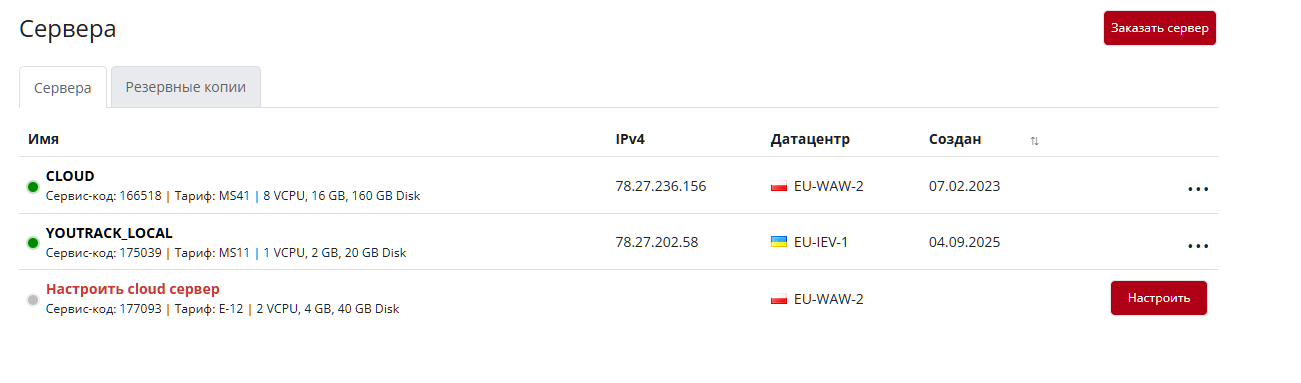
Для начала работы с облачным сервером необходимо установить операционную систему. Это можно сделать с помощью различных вариантов:
1. Автоматическая установка - для инсталляции операционной системы достаточно выбрать образ из представленных, указать название сервера и кликнуть по "Подтвердить и установить".
Вы можете выбрать одну из ОС из списка:
Alma-Linux
Centos-Stream
Debian
Fedora
Freebsd
Opensuse
Oracle Linux
Rocky Linux
Ubuntu
Microsoft Windows Server Eval
А также:
Openclaw
Wireguard-Server
Обращаем внимание! Ключи активации операционных систем не предоставляются компанией Mirohost.
Активация необходима для корректного функционирования Microsoft Windows Server после завершения Evaluation периода.
2. Ручная установка - разверните чистый облачный сервер, подключите собственный ISO-образ и начните инсталляцию. Управлять процессом установки ОС можно через VNC-консоль в панели управления.
3.Установка из резервной копии - вы можете предварительно сделать бэкап сервера, и если в какой-то момент произойдет сбой в работе операционной системы, можно переустановить ОС на сервер, используя уже подготовленный бэкап.
4.Клонировать сервер - возможность в один клик развернуть новый сервер, который будет полной копией уже настроенного и работающего сервера в вашем профиле.
Частые вопросы
Я не помню пароль root. Что делать?
Мы не храним пароли от виртуальных машин (ВМ), находящихся под вашим управлением. Пароль администратора отправляется на почту один раз в момент создания ВМ. Если после этого пароль был изменен и вы его забыли, рекомендуем воспользоваться функцией установки нового пароля через контрольную панель, раздел «Восстановление» – «Root пароль».
Есть ли ограничения скорости входящего/исходящего трафика?
На текущий момент для всех тарифов установлена скорость входящего и исходящего трафика на уровне 1Gbit/sec.
Что будет, если лимит по трафику исчерпан?
Лимит исходящего трафика введен во избежание злоупотреблений. В случаях систематического превышения трафик может быть ограничен индивидуально, в зависимости от ситуации.
Можно ли перейти с eVPS на cloud?
Решение eVPS предназначено для хостинга сайтов и имеет встроенную панель для управления веб-сервисами. Панель Cloud-сервера, напротив, управляет виртуальной машиной как «черным ящиком» (Black Box), не имея доступа к ее внутренним конфигурациям или файлам. Перенос данных при переходе с eVPS на Cloud выполняется пользователем. Обратите внимание, что облачные тарифы (Cloud) предусматривают самостоятельное администрирование, разработку и техническую поддержку проекта клиентом.
Как я могу изменить тариф?
Переход на более высокий тариф: выполняется автоматически. В панели управления откройте раздел «Изменение размера» и нажмите «Выбрать» возле нужного тарифа. Изменения в конфигурации и перерасчет стоимости произойдут мгновенно.
Переход на более низкий тариф: технически невозможен для уже созданного сервера. Чтобы снизить затраты, закажите новый (меньший) сервер, самостоятельно мигрируйте данные и удалите старый сервер. Остаток средств за старый сервер будет передан на ваш баланс.
Как изменить rDNS?
Изменения можно выполнить через раздел "Сети" в панели управления хостингом.
Можно ли переходить с тарифов shared на dedicated и обратно?
Да, это возможно. Но изменение тарифа происходит только на тариф с большим дисковым пространством.
Что такое система восстановления Rescue?
Список образов для режима восстановления:
Debian-Live
Finnix
Rescuezilla
Systemrescue
WinPE
Краткое описание образов и их назначение: Debian-Live Полноценная операционная среда Linux (Debian), запускаемая в оперативной памяти сервера без установки на диск. Идеально подходит для ручного монтирования файловых систем, копирования данных, редактирования конфигурационных файлов (например, /etc/fstab или сетевых настроек) и сброса паролей в привычном Linux-окружении.
Finnix Маленький, очень быстрый и оптимизированный Live-дистрибутив Linux для системных администраторов, не имеющий графического интерфейса (работает только через консоль). Он содержит исчерпывающий набор утилит для тестирования сети, проверки оперативной памяти, восстановления загрузчиков (GRUB) и низкоуровневой работы с дисками.
Rescuezilla Специализированный инструмент, известный как «швейцарский нож» для резервного копирования и восстановления. Он имеет простой графический интерфейс и предназначен для развертывания или создания полных снимков (клонов) дисков и отдельных разделов. Помогает быстро восстановить работоспособность сервера из бэкапа, даже если основная ОС полностью повреждена.
Systemrescue (SystemRescueCd) Один из самых популярных инструментов для аварийного восстановления Linux-систем. Содержит большое количество админских утилит для работы с дисковой разметкой (GParted, fdisk), восстановления удаленных файлов (TestDisk, PhotoRec), проверки целостности файловых систем (e2fsck) и исправления ошибок загрузки.
WinPE (Windows Preinstallation Environment) Облегченная версия операционной системы Windows, запускаемая с виртуального привода. Она незаменима, если ваш облачный сервер работает на базе ОС Windows Server или Windows 10. Позволяет проверить диски утилитой chkdsk, отредактировать реестр (regedit) упавшей системы, заменить системные драйверы или скопировать критически важные корпоративные данные на внешнее хранилище.
Используйте консоль VNC для выполнения восстановительных работ в режиме Rescue. После того как работы будут завершены — нажмите кнопку "Unrescue" в консоли управления, после чего Rescue диск будет отключен от сервера и система загрузится как обычно.
Могу ли я использовать свои образы для виртуальных машин?
Если среди представленных образов нет нужного — просьба написать обращение в техподдержку, чтобы мы могли проконсультировать в индивидуальном порядке.
Можно ли управлять VNC консолью, используя мобильные устройства и планшеты?
Мы не рекомендуем этого делать, так как работа через мобильное устройство сопряжена с ограниченным управлением из-за размера экрана. Браузер не считает окно консоли VNC точкой ввода, поэтому не позволяет использовать экранную клавиатуру, когда фокус находится внутри консоли VNC. Единственным способом что-то ввести в консоль VNC в таком случае является переключение на другое окно мобильного устройства, ввод текста туда, копирование текста в clipboard и вставка в консоль VNC через кнопку Paste Clipboard. Нажатие кнопок пальцем при этом обычно отрабатывает, если используется графический терминал. Также некоторые браузеры типа Safari могут блокировать открытие нового окна при открытии сессии VNC.
Могу ли я перенести свой сервер из одного дата-центра в другой (между Украиной и Польшей)?
Да, это возможно. Создайте новый заказ в другом дата-центре, но с аналогичным или большим тарифом, и при создании новой машины выберите пункт "Клонировать сервер". Система предложит вам выбрать, какой сервер необходимо клонировать. После завершения операции клонирования будет создан сервер в другом дата-центре — он будет полной копией выбранного сервера, но с другим IP-адресом. Операция переноса сервера в другой дата-центр не быстрая, поэтому нужно будет подождать. Позже можно удалить старый сервер или сделать кластер на серверах в разных дата-центрах.
В логе сервера много ошибок "Сервер остановлен" "Error"
Наиболее вероятная причина этой ошибки заключается в том, что вы создали виртуальную машину из ISO-образа десктопной операционной системы. Десктопные операционные системы, такие как Windows 10/11, имеют по умолчанию настройки экономии электроэнергии и поэтому при неактивности начинают изнутри погружать виртуальную машину в режим "сон"/"sleep". При взаимодействии с KVM-гипервизором это может привести к ошибкам — система не может корректно остановить виртуальную машину. Мы рекомендуем отключать режим "сон"/"sleep" или просто останавливать виртуальную машину, если вы ее не используете.
Windows-сервер/машина иногда подвисает во время его остановки/перезагрузки через консоль управления сервером. Что делать?
Windows-серверы могут затрачивать значительное время на операции остановки всех работающих сервисов. Стандартная операция остановки сервера ждет 3/15 минут, пытаясь деликатно его остановить. После чего начинается процесс принудительной остановки сервера, чтобы не допустить непрогнозируемых последствий. Мы рекомендуем для серверов Windows просто запускать изнутри операции "Перезагрузка" или "Завершить работу". Эти действия будут полностью контролироваться операционной системой сервера. Кроме того, остановка сервера через "Завершение работы" приведет к тому, что статус сервера в панели управления также изменится на "Остановлен". Аналогичное можно делать и для серверов Linux через "Reboot" или "Shutdown". Но обычно у Linux-серверов вышеописанных проблем не возникает.
Можно ли подключить дополнительные диски к своему серверу?
Да, это возможно через заказ дополнительного диска: в разделе "Облако" выберите "Диски" и кликните по "Заказать диск".
Диск указанного размера будет добавлен к виртуальному серверу по технологии iSCSI. В списке устройств вашего сервера появится новое устройство — как правило, оно имеет имя /dev/sdb (/dev/sdc, если добавлен еще один диск). Вам нужно будет самим добавить туда разделы, отформатировать его и примонтировать к файловой системе. Также при создании нового диска его можно сразу отформатировать в выбранной вами файловой системе (ext4/xfs/btrfs/ntfs), и тогда вам потребуется лишь выполнить команды:
mkdir -p /storage
mount /dev/sdb1 /storage
Опция форматирования доступна только для дисков размером до 512Gb.
Можно ли переходить с тарифов shared на dedicated и обратно?
Да, это возможно только в рамках ограничений на размеры дисков – они не могут быть уменьшены